Adding Rotations
Rotations can be added to key frames to show all sides of an object in an animated sequence. The direction of the rotation, as well as the sweep angle, are selectable in the Rotation Options dialog, which is shown below.
Rotation Options dialog

By default, rotations are done around the camera axis. You change to rotations around an object’s axis by checking the Rotate around the object's axis option and then selecting the required rotation.
- Select the key frame that you want to add a rotation to.
- Click the Rotate button, as shown below.

The Rotation Options dialog appears.
- Choose a rotation direction, as well as a sweep angle, in the Rotation Options dialog.
Note Check the Rotate around the object's axis option to apply the rotation around the object's axis instead of the camera axis.
- Click the OK button to create the rotation sequence.
Note A small indicator appears at the bottom right of the key frames that are linked by the rotation, as shown below.
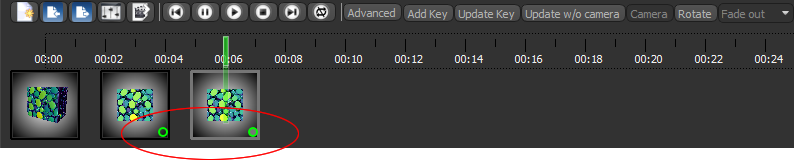
- Preview your changes to the animated sequence with the playback controls, recommended (see Playback Controls).
